

Custom instructions are a set of rules at the start of a conversation designed to prime the AI tool to get a more focused and desired response than the model may otherwise return. These instructions can include details about preferred tone, style or content, allowing you to customize the language model's responses to better suit your individual requirements. Examples of custom instructions include n turning data into a visualization or taking detailed text and reformatting it into a PowerPoint presentation.
Creating Custom Instructions
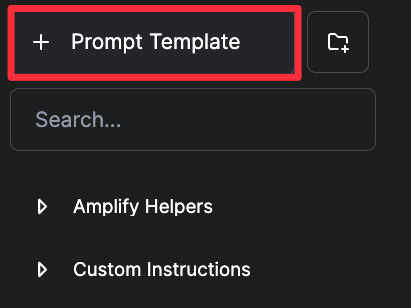
Select the + Prompt Template icon in the top of the left-hand sidebar to create your custom instructions, (See Fig. 1).
Image
Figure 1: Location of the new prompt icon.
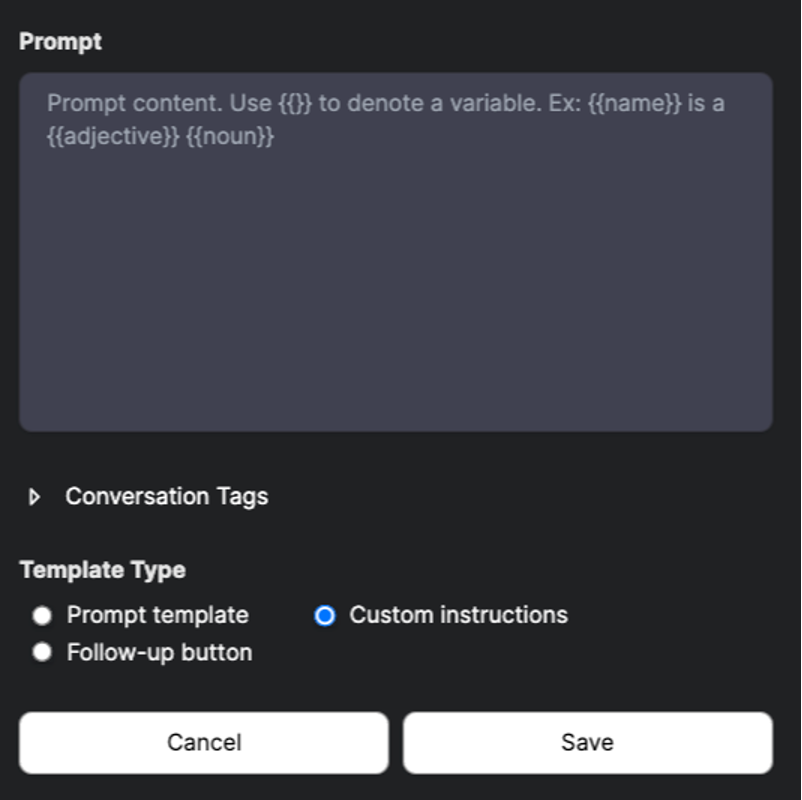
In the pop-up window, scroll to the bottom and select Custom Instructions as the Template Type.
Image
Figure 2: Prompt Template fields in the pop-out window.
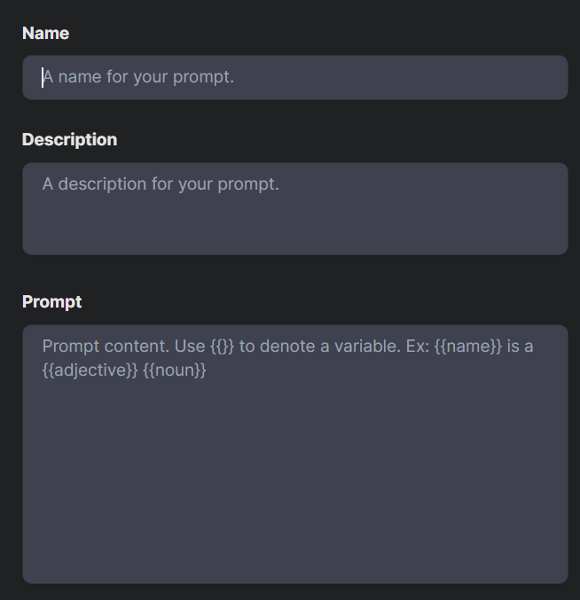
Once you select the Custom Instructions option, complete the required fields.
Image
Figure 3: Fields for the new Custom Instructions creation.
- Name: Provide a name for your custom instructions.
- Description: Provide a brief description of your custom instructions.
- Prompt: Add a prompt for your custom instructions.
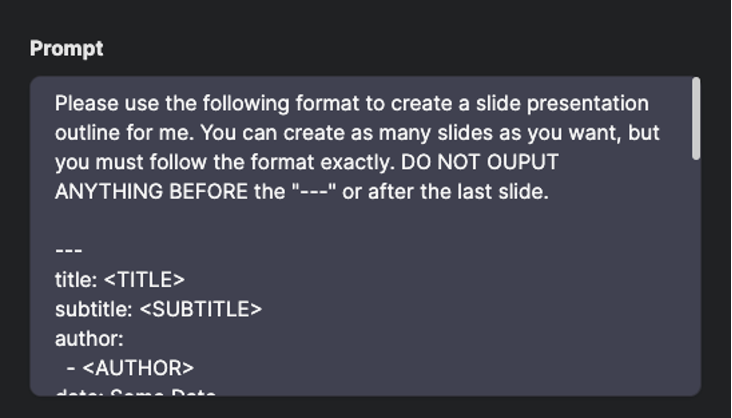
- Note: Given the nature of Custom Instructions, write your prompt as a set of instructions that will apply at the beginning of any message sent in a conversation where your custom instructions are applied (See Fig. 4).
Image
Figure 4: Detail of a completed Prompt field.
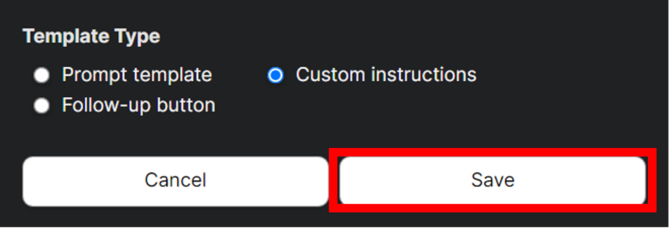
Once you have everything entered, review your Custom Instructions, then select Save.
Image
Figure 5: Save button at the end of the template creation menu.
Selecting and using Custom Instructions
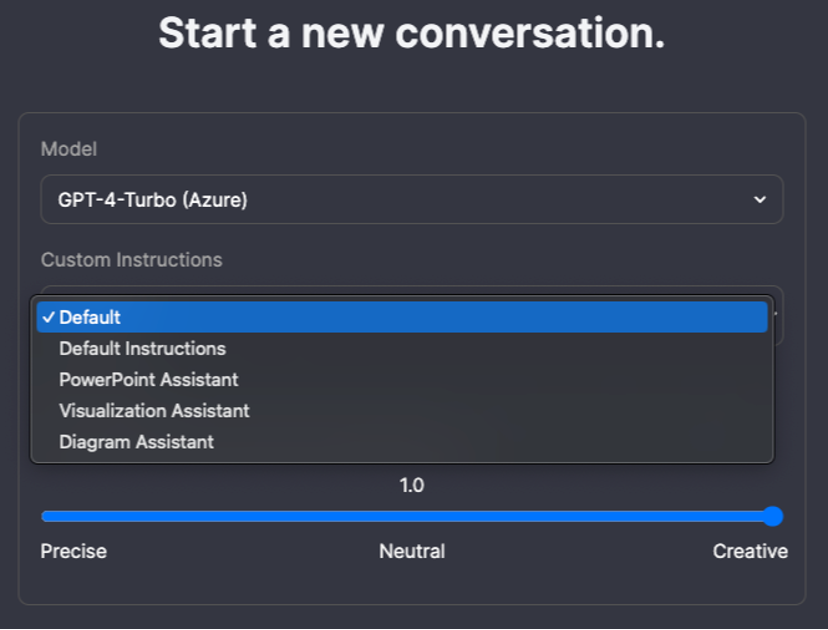
To use Custom Instructions, begin a New Chat and select the Custom Instructions you want to use for this chat.
Image
Figure 6: List of Custom Instruction options.
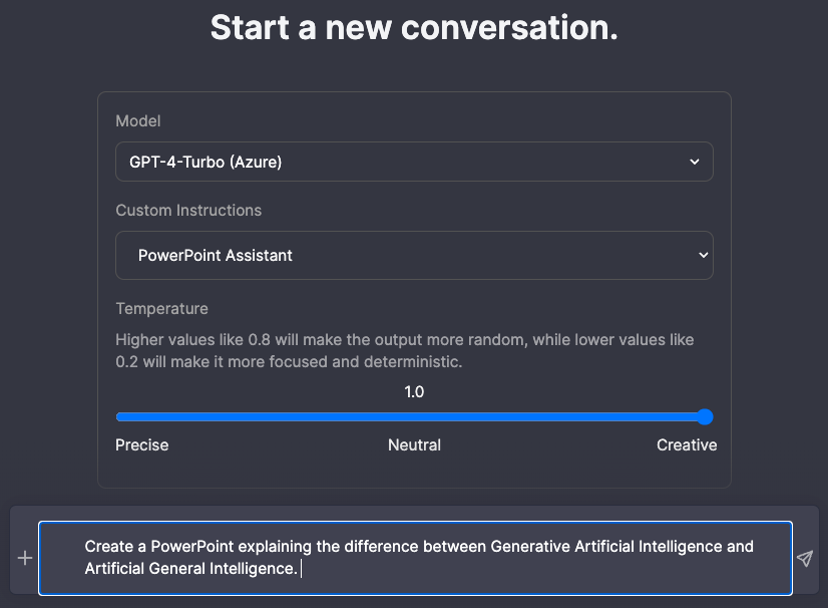
Once you select the appropriate Custom Instructions, enter and submit a Prompt as you normally would.
Image
Figure 7: Prompt for the Custom Instruction to use.
Acknowledgement
Initial documentation structure, text, and images were provided by the Amplify open source GitHub repository (Vanderbilt, 2025, and 40AU), and parts have been modified by UM System.