
Sharing a conversation or folder with another user
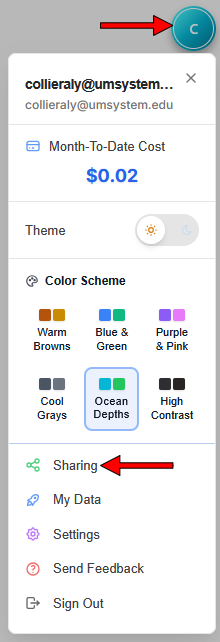
Select your user icon to access the user menu, then select Sharing from the drop-down menu to open the Sharing Center (See Fig. 1).
Image
Figure 1: Select Sharing to open the Sharing Center.
- From the Sharing Center, select the Share with Others button. This will open a pop-up sharing window.
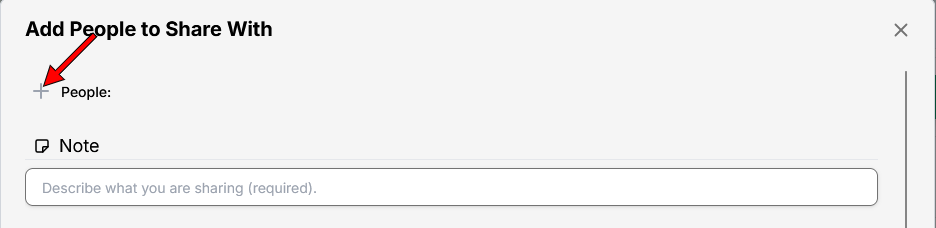
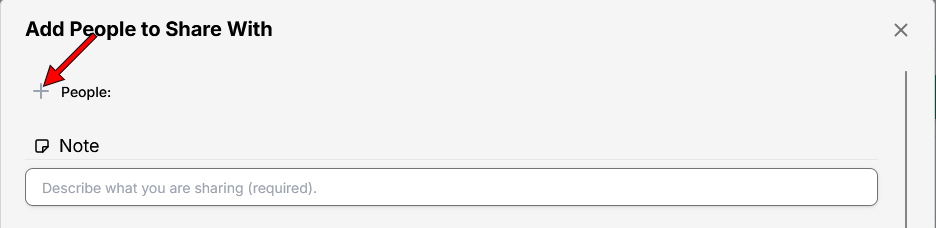
Select the + next to People to add the person or people you’d like to share with (See Fig. 2). You must add the user’s email address, but Show-Me AI will search for existing users.
Image
Figure 2: Select the + to add a user’s email address.
- Add a note with more information about what you are sharing. A note is required before you can share your item. The receiving user will see your note as the description of the folder or conversation.
- Find the item you’d like to share, and select the checkbox next to it.
- Select Share.
Sharing an assistant with another user
- Select the Assistants sparkle icon from the task bar.
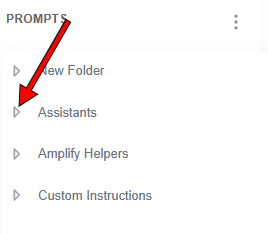
Select the arrow next to Assistants to see all available assistants (See Fig. 1).
Image
Figure 1: Location of the arrow to view all Assistants.
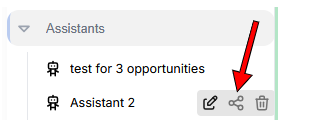
Find the assistant you’d like to share and hover over the name to see additional options. Select the share icon (See Fig. 2).
Image
Figure 2: Location of the share icon when hovering over an assistant’s name.
Select the + next to People to add the person or people you’d like to share with (See Fig. 3). You must add the user’s email address, but Show-Me AI will search for existing users.
Image
Figure 3: Select the + to add a user’s email address.
- Add a note with more information about what you are sharing. A note is required before you can share your assistant. The receiving user will see your note as the description before importing the assistant.