

Use an AI assistant to automate routine tasks that frequently require variable input.
To create an Assistant:
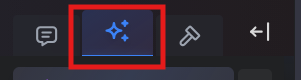
Select the Assistant icon from the Assistant sidebar (See Fig. 1).
Image
Figure 1: Location of the Assistant icon.
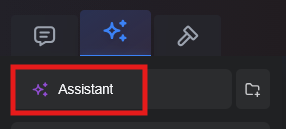
Select the Assistant icon to create a new assistant (See Fig. 2).
Image
Figure 2: location of the Assistant creation icon.
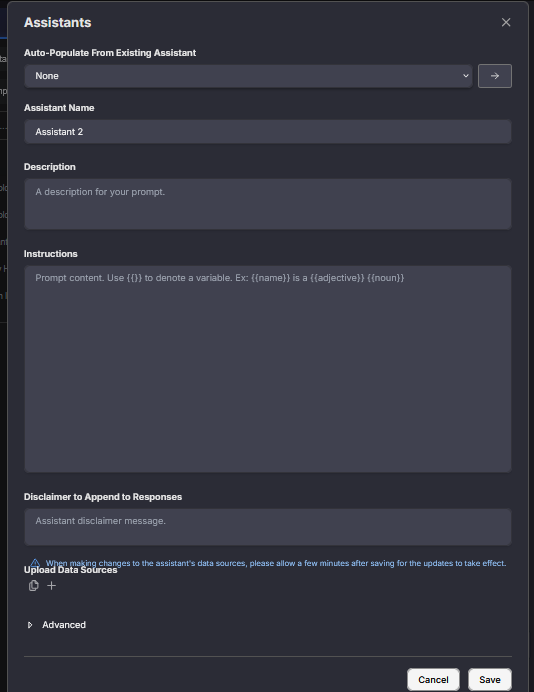
A pop-up window will appear where you will add details and files for your assistant (See Fig. 3).
Image
Figure 3: Form fields for the assistant.
- If you’d like to base this assistant off of a previous assistant, select the drop-down menu below Auto-Populate From Existing Assistant. If you are starting fresh, leave this on None.
- Complete the Assistant Name and Description fields to help you differentiate between assistants.
- Add instructions including prompt contents, variables and additional notes about tone. You can continue adding to these instructions after creating your assistant.
- Optionally, you can add a Disclaimer that will append to any messages from this assistant and upload data sources that your assistant can reference.
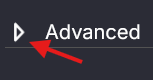
Select the arrow next to Advanced to open the Advanced Settings menu (See Fig. 4). Add any of these options or tags as appropriate for your assistant.
Image
Figure 4: Location of the arrow to open the Advanced settings menu.
- Select the Save button to save your assistant for future use.
- Your assistant will now appear under Assistants in the left-side panel.
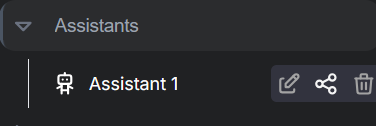
You can share, edit or delete your assistant after it has been created. Hover over the assistant’s name to access these options (See Fig. 5).
Image
Figure 5: Options to edit, share or delete will appear when hovering over the assistant name.
Acknowledgement
Initial documentation structure, text and images were provided by the Amplify open source GitHub repository (Vanderbilt, 2025, and 40AU), and parts have been modified by UM System.