

Prompt templates are designed to streamline the process of using the same prompt or sharing a prompt with slight differences. A prompt template is a prompt with placeholders. You can select a prompt template, fill in the placeholders and run the prompt with the model of your choice. This is a great tool if you create a detailed prompt that you plan to use to complete a similar task more than once that may be focused on different content.
Creating a Prompt Template
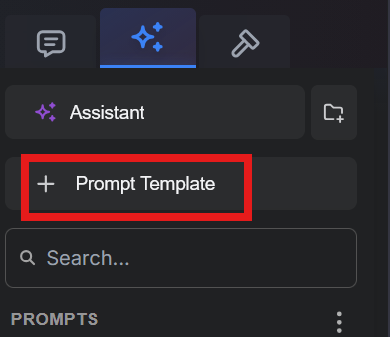
Select the + Prompt Template icon in the top of the left-hand Assistant sidebar. This will allow you to start the process of creating a new Prompt Template, (See Fig. 1).
Image
Figure 1: Location of the new Prompt Template icon.
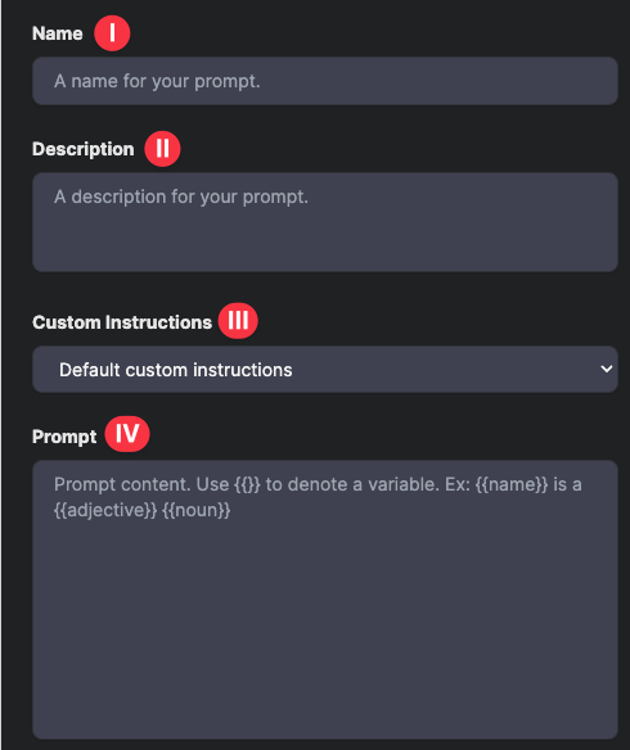
Once you select the + Prompt Template, a new window will appear requesting information about your prompt, (See Fig. 2).
Image
Figure 2: Required fields for a new prompt template.
Next, you will fill out each of the following fields:
- Name: Provide the name of the prompt template that you want to be displayed in the right-hand sidebar.
- Description: Provide a brief description of your prompt template.
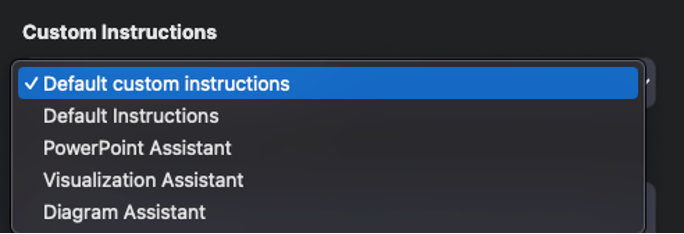
- Custom Instructions: From the dropdown bar, select either the default instructions or a specific set of Custom Instructions (See Fig. 3).
Image
Figure 3: Custom Instructions options.
Custom instructions create rules structuring Show-Me AI’s response that will be used and reinforced throughout the entire conversation.
In contrast, information that you include in the prompt section will be used only once (unless you reuse the prompt within a conversation).
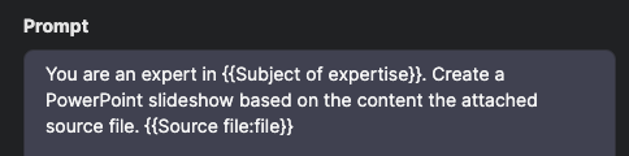
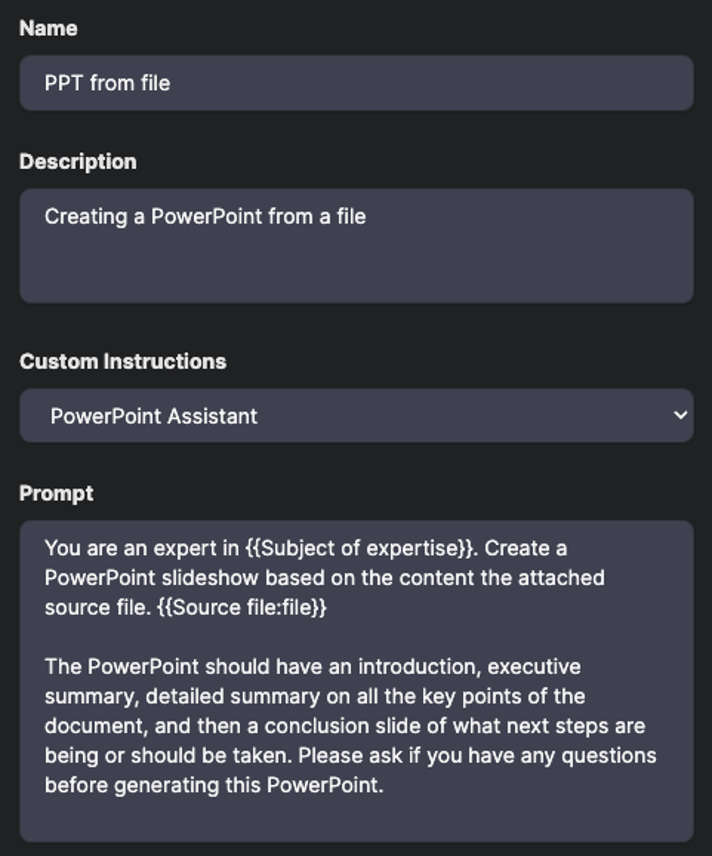
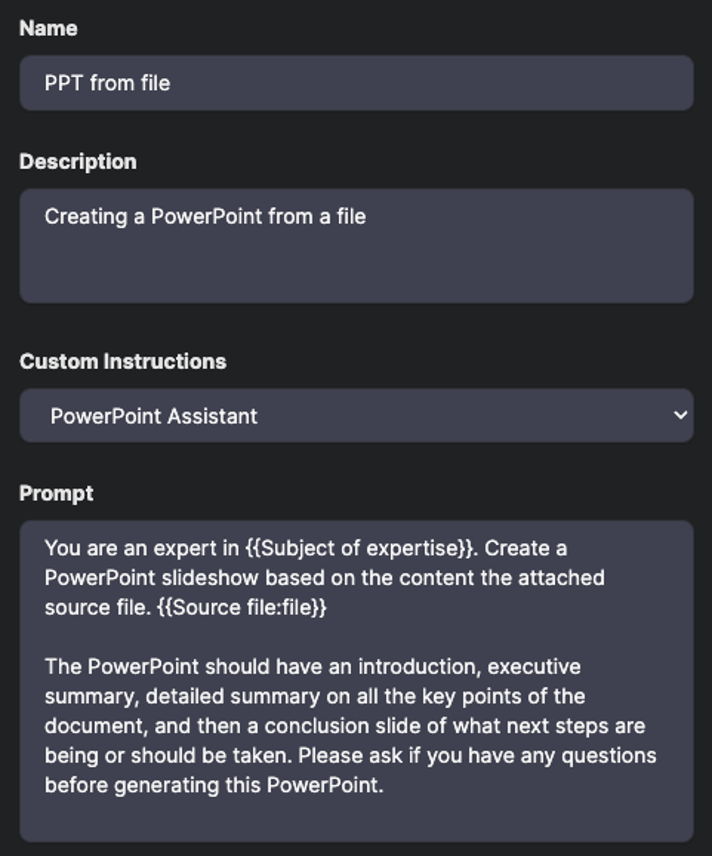
- Prompt: Provide the prompt that you want to reuse, denoting variables with {{variable}}, (See Fig. 4).
- For example, “You are an expert in {{Subject of expertise}}.”
- Another example is the variable {{Source file:file}}, which allows you to include a file upload as part of your prompt.
Image
Figure 4: Sample template wording.
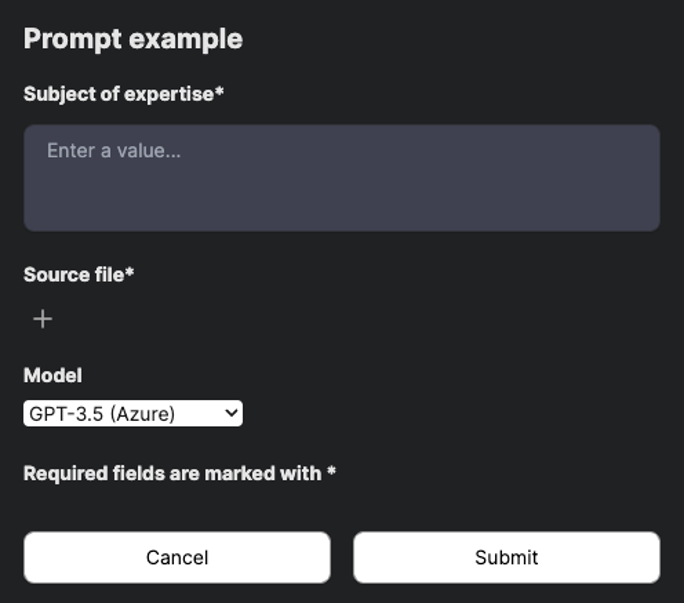
Once your Prompt Template is created, any variables you define will appear as places to input information or upload files (See Fig. 5).
Image
Figure 5: Defined variable fields.
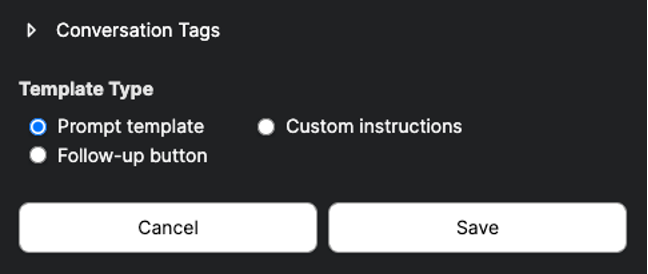
Template Type: Prompt template will automatically be selected. To create a prompt template, you do not need to change the template type.
Image
Figure 6: Template Type options.
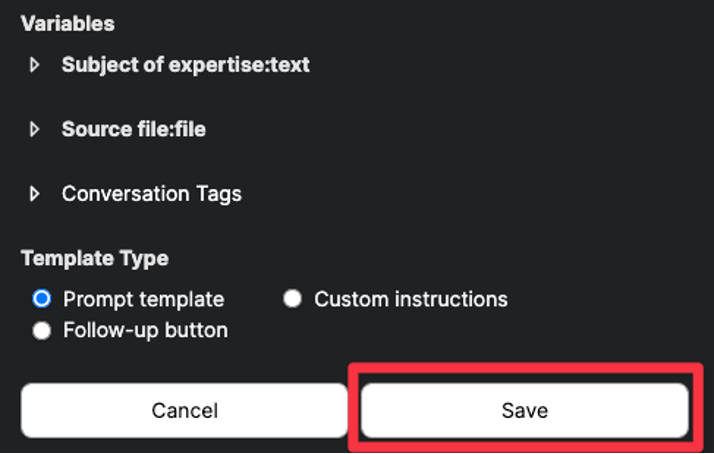
Once you have everything entered, review your Prompt Template, then select Save (See Figures 7 and 8).
Image
Figure 7: Completed fields.
Image
Figure 8: Save button at the end of the template creation menu.
Selecting and using Prompt Templates
Use a custom Prompt Template, or a pre-existing one by following the steps below.
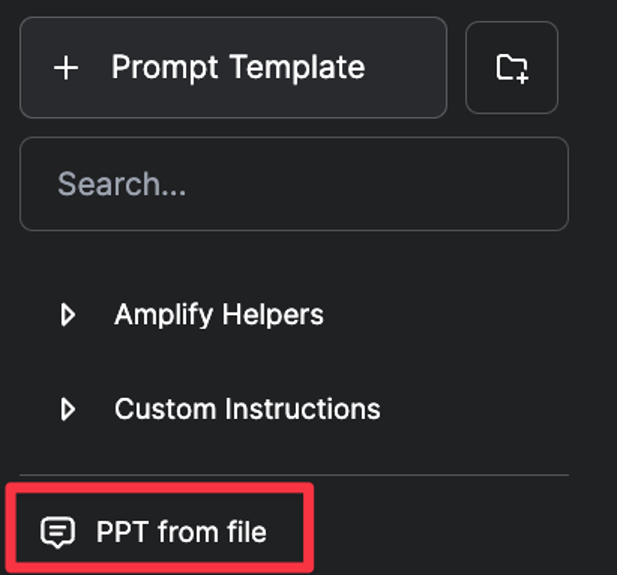
Select the Prompt Template you want to use from the Assistant sidebar, (See Fig. 9).
Image
Figure 9: Location of templates in the Assistant sidebar.
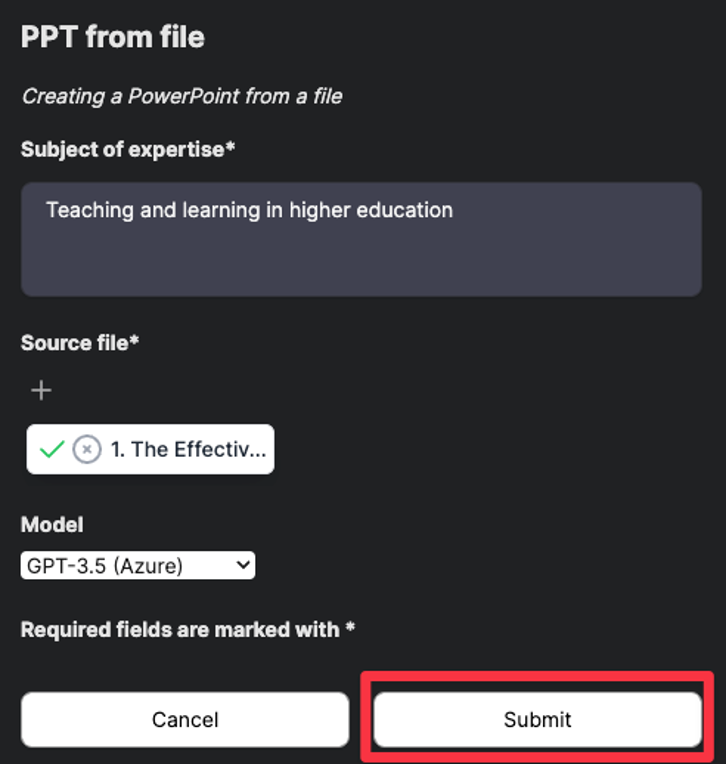
In the popup window that appears, fill out each of the fields with the information you would like to add, (See Fig. 10).
- This window will include options like what model to use and fields to define variables created when the Prompt Template was made.
- Example: Here the option to upload a file is present because that variable was added in the Prompt Template during its creation.
Image
Figure 10: Options for adding a file and changing the chat model for a template.
Once you have made any selections or selected any variables, select Submit to have Show-Me AI run the prompt as designed (See Fig. 11).
Image
Show-Me AI will submit the prompt from the prebuilt Prompt Template (complete with any added variables) to the selected model and produce output as it would from any regular prompt.
Image
Figure 12: Completed prompt details.

Acknowledgement
Initial documentation structure, text, and images were provided by the Amplify open source GitHub repository (Vanderbilt, 2025, and 40AU), and parts have been modified by UM System.